Final Cut Download - Edit Like a Pro
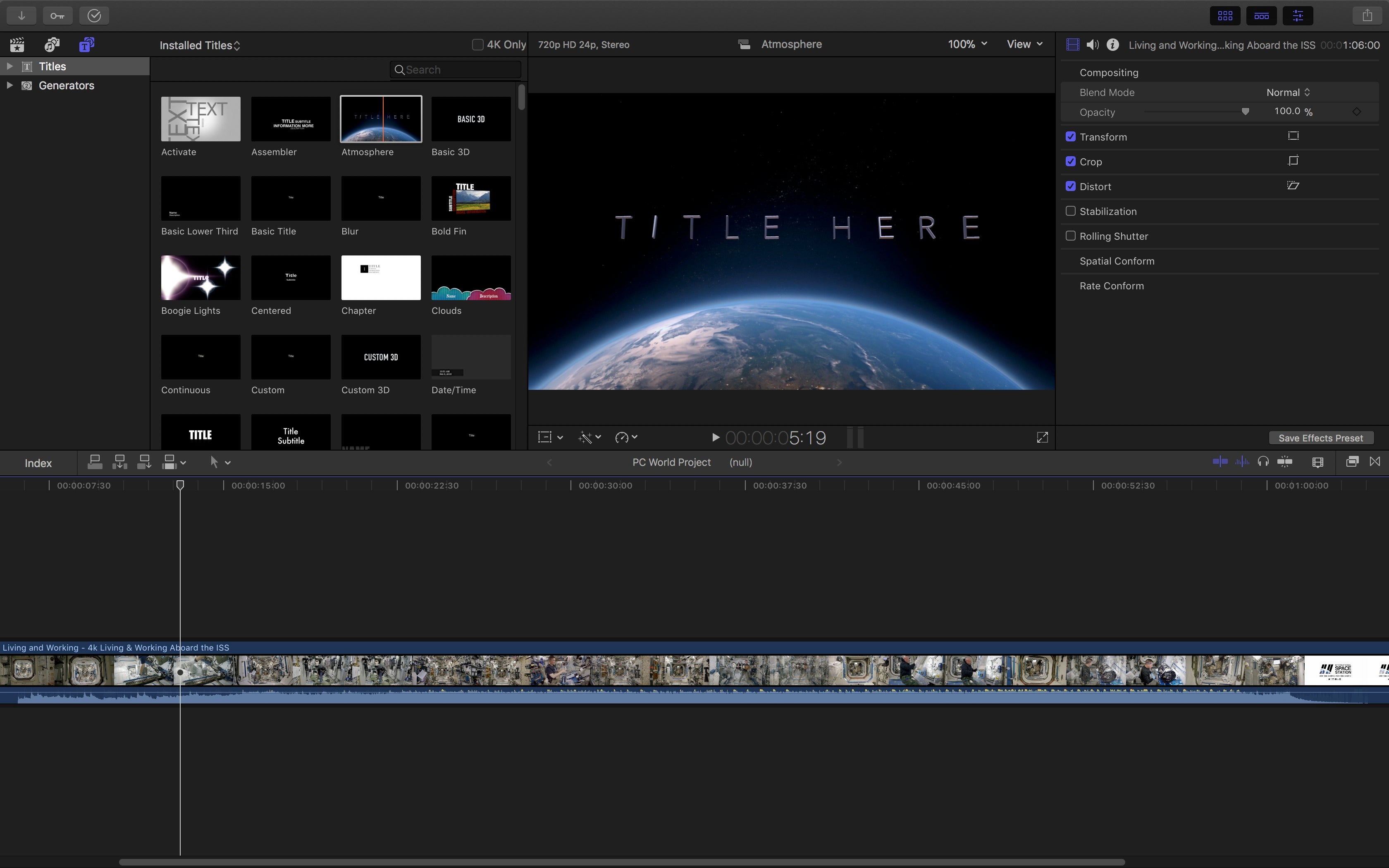
Are you an aspiring filmmaker or video editor looking to take your skills to the next level? Look no further than Final Cut, one of the most powerful and popular video editing software available in the market. In this blog post, we will explore the process of Final Cut download and provide you with tips on how to edit like a pro using this remarkable tool.
Why Choose Final Cut?
Before we dive into the details of downloading and using Final Cut, let's understand why it is the go-to choice for professionals and enthusiasts alike. Final Cut is renowned for its user-friendly interface, impressive editing features, and seamless integration with Apple devices. Whether you are a beginner or an experienced editor, Final Cut offers a range of tools and functions to bring your vision to life.
The Process of Final Cut Download
Now that you understand the benefits of Final Cut, let's walk you through the process of downloading this software:
- Visit the official Apple website or the App Store on your Mac device.
- Search for Final Cut in the search bar.
- Click on the download option and wait for the software to install.
- Once the installation is complete, launch Final Cut on your device.
- Ensure that you have the necessary system requirements to run Final Cut smoothly.
- Sign in with your Apple ID or create a new account if you don't have one.
- Agree to the terms and conditions and follow the on-screen instructions.
- Final Cut is now ready to use on your Mac device!
Edit Like a Pro with Final Cut
Now that you have successfully downloaded Final Cut, it's time to unlock its full potential and edit your videos like a pro. Here are some tips and tricks to help you get started:
1. Familiarize Yourself with the Interface
Take some time to explore the various menus, panels, and tools within Final Cut's interface. Understanding the layout will help you navigate through the software effortlessly.
2. Organize Your Media
Before you begin editing, ensure that all your media files, such as videos, images, and audio, are organized in a logical manner. This will save you time and effort during the editing process.
3. Utilize Keyboard Shortcuts
Learning and utilizing keyboard shortcuts can significantly speed up your editing workflow. Final Cut offers a wide range of shortcuts that allow you to perform tasks quickly and efficiently.
4. Master the Timeline
The timeline is where the magic happens in Final Cut. Spend time understanding the different tracks, markers, and editing tools available to create seamless transitions, add effects, and synchronize audio.
5. Experiment with Effects and Filters
Final Cut provides an extensive collection of effects and filters to enhance your videos. Experiment with different options to add depth, color correction, and visual appeal to your footage.
6. Utilize Audio Editing Tools
Don't overlook the importance of audio in your videos. Final Cut offers a range of audio editing tools to fine-tune sound levels, remove background noise, and add music or voiceovers.
7. Explore Advanced Features
Once you have a good grasp of the basics, delve into Final Cut's advanced features. These include color grading, multicamera editing, motion graphics, and more. Continuously push your boundaries to elevate your editing skills.
Final Thoughts
Final Cut is a game-changer for anyone looking to create professional-quality videos. With its user-friendly interface and powerful editing tools, the possibilities are endless. Download Final Cut today, follow the tips mentioned above, and get ready to edit like a pro!
Disclaimer: The download process and features mentioned in this blog post are based on the latest version of Final Cut available at the time of writing. Please refer to the official Apple website or App Store for the most up-to-date information.


Comments
Post a Comment